Your team picked an AI coding assistant six months ago. Half the team uses it daily. The other half opens it once a week and then ignores it. The benchmark scores said it was the best tool on the market, so the gap is confusing. The benchmark missed the question that actually matters.
The question is not "which tool is best." The question is where the AI agent lives in your workflow. Cursor and Windsurf embed it in the IDE. Claude Code and Aider run it from the terminal. These are fundamentally different workflows, and the right choice depends on how you write code today, what tasks consume most of your day, and whether you are willing to change editors.
Most comparisons focus on features and benchmarks. This one focuses on workflow fit, because a tool that scores higher on benchmarks while breaking your working pattern slows you down, while a tool that fits your existing rhythm compounds small gains across every hour of your day.
Comparing specific tools? Read our Cursor vs Claude Code vs GitHub Copilot head-to-head, or browse the full AI Coding Assistants Directory at /ai-coding-assistants for scored profiles, pricing, and editorial picks.
What IDE-Native Means
IDE-native tools make the editor itself intelligent. The AI runs inside your IDE, with direct access to your open files, your cursor position, your recent edits, and the visual layout of your workspace.
The experience: You type code. Suggestions appear inline, in real time. You press Tab to accept. For larger changes, you open a chat panel or agent mode within the IDE. Multi-file edits appear as visual diffs across your open tabs. You see changes happening as they are applied.
Tools in this category
| Criteria | Editor |
|---|---|
| Cursor | Cursor (VS Code fork) |
| GitHub Copilot | VS Code, JetBrains, Neovim, Xcode, Visual Studio, Eclipse |
| JetBrains AI + Junie | All JetBrains IDEs |
| Windsurf | Windsurf (standalone IDE) |
| Google Antigravity | Antigravity (VS Code fork, Gemini-backed) |
Pricing details current as of April 2026.
- Immediate visual feedback on every change.
- Fastest autocomplete in the market (Cursor Tab leads).
- Multi-file edits visible as inline diffs across open tabs.
- Code navigation, go-to-definition, and refactoring tools integrated with the agent.
- Lower learning curve for developers already comfortable in IDEs.
- Editor lock-in (Cursor requires Cursor, Windsurf requires Windsurf).
- Copilot avoids lock-in but runs as an extension, limiting how deeply it integrates.
- JetBrains AI only works inside JetBrains IDEs (the suite is broad, the trade is the same).
- Context is bounded by what the IDE exposes, which can exclude files outside the current project.
What CLI-Native Means
CLI-native tools run in your terminal. They operate alongside whatever editor you prefer. The AI reads your repository from the filesystem, executes commands in your shell, and applies changes as file diffs. Your editor stays open, refreshing as files change on disk.
The experience: You open a terminal. You describe a task in natural language. The agent reads your codebase, creates a plan, writes code, runs tests, and reports back. You review the changes in your editor, which picks them up as file system changes. For simple tasks, this takes seconds. For complex multi-file changes, the agent works for minutes while you review the plan and intermediate output.
Tools in this category
| Criteria | Licence model |
|---|---|
| Claude Code | Proprietary, included with Claude Pro / Max / Teams subscriptions |
| Codex CLI | Open source (Apache 2.0). Included with ChatGPT Plus, Pro tiers |
| Gemini CLI | Proprietary (Google). Free Flash tier, paid AI Pro and AI Ultra tiers |
| Aider | Open source (Apache 2.0). Bring-your-own-key, pay only for API tokens |
| OpenCode | Open source, bring-your-own-key. Built in Go. 95K+ GitHub stars |
Pricing details current as of April 2026.
- Editor-agnostic: works with VS Code, JetBrains, Vim, Neovim, Emacs, or any editor.
- Scriptable: integrates into CI/CD pipelines, git hooks, shell scripts, and cron jobs.
- Headless execution: Claude Code Remote Control and Codex Web run on servers without a local terminal.
- Full terminal access: the agent can run any CLI tool, database client, cloud CLI, or build system.
- MCP-native: Claude Code, Codex CLI, and OpenCode ship first-class Model Context Protocol support. Aider is the exception.
- Multi-agent orchestration: agent teams with worktree isolation enable parallel task execution. Claude Code Dispatch enables programmatic triggering.
- Limited visual feedback: CLI agents read and write files but see UI changes, design mockups, or visual output indirectly.
- Steeper learning curve: requires comfort with terminal workflows and task specification.
- Limited autocomplete: CLI tools are built for agentic task execution, not real-time inline suggestions.
- Slower feedback loop for small edits: opening a terminal, describing a task, and waiting for execution is overhead for a one-line change.
On safety
CLI agents execute commands in your terminal, which raises legitimate concerns. Claude Code and Codex CLI both ship with sandboxing and permission models that mitigate the risk. Claude Code defaults to read-only and asks before modifications, with five permission modes and filesystem plus network isolation. Anthropic's internal data shows sandboxing reduces permission prompts by 84 percent. Codex CLI uses a similar two-layer model: sandbox mode controls technical capabilities, approval policy controls when the agent must ask. Default is workspace-scoped writes with no network access. Aider takes a different approach: every AI edit auto-commits to git with a descriptive message, so recovery is one git revert away. The pattern across all three is deny-first defaults, escalation to human approval, and an opt-in path to fuller autonomy as trust grows.
The Workflow Comparison
| Criteria | IDE-Native | CLI-Native |
|---|---|---|
| Primary interaction | Type code, accept inline suggestions | Describe task, review output |
| Autocomplete | Best in class (millisecond predictions) | Minimal or absent |
| Multi-file editing | Visual diffs in editor tabs | File system changes picked up by editor |
| Agentic capability | Growing (Cursor Agent, Copilot Agent, Junie) | Core strength (built for autonomous execution) |
| Editor flexibility | Locked to specific IDE (Cursor) or extension-compatible (Copilot) | Works with any editor |
| CI/CD integration | Limited | Native (scriptable, headless) |
| Visual feedback | Rich (inline, real-time) | Limited (terminal output, file diffs) |
| Best for | Flow state, active coding, visual work | Complex reasoning, automation, multi-step tasks |
| Learning curve | Low (familiar IDE patterns) | Moderate (terminal plus task specification) |
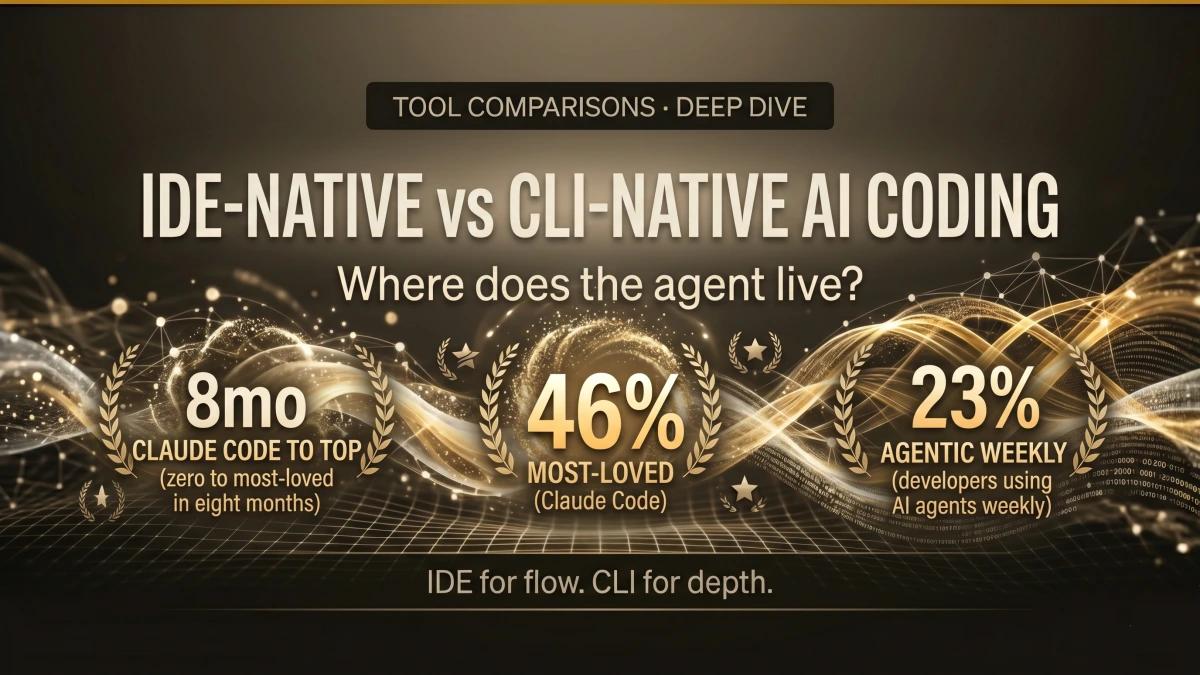
Cursor 19 percent. GitHub Copilot 9 percent. Terminal-first crossed from niche to lead in under a year.
When Each Workflow Wins
IDE-native wins when
- You are writing new code and want the agent to keep up with your typing speed.
- You are working on frontend or visual components where seeing the output matters.
- You prefer a single-tool workflow where everything happens inside one window.
- Your team includes developers who are less comfortable with terminal workflows.
- You want the fastest possible feedback on small edits and completions.
CLI-native wins when
- The task involves complex reasoning across many files (refactoring, debugging, architecture changes).
- You want to automate repetitive development workflows (commit messages, PR descriptions, changelog generation, test writing).
- You use JetBrains, Vim, Neovim, or Emacs and prefer to keep your editor.
- You want to integrate AI coding into your CI/CD pipeline (automated code review, test generation on push).
- You work on backend-heavy projects where visual feedback matters less.
The routing pattern (both win)
The most productive developers in 2026 use both approaches.
IDE for flow: Keep Cursor or Copilot running during active coding sessions. Accept inline suggestions. Use the IDE chat for quick questions. This handles the 70 percent of your day spent writing and editing code.
CLI for depth: Switch to Claude Code or Codex CLI for complex tasks. Hand off a debugging session, a refactor, or a test suite. Review the result in your editor. This handles the 30 percent of your day spent on tasks that require deep codebase reasoning.
The switch between modes happens naturally based on task complexity. A one-line fix stays in the IDE. A 20-file refactor goes to the terminal.
JetBrains Junie: The Hybrid
JetBrains Junie deserves a separate mention because it bridges both categories. Junie is an autonomous coding agent built into all JetBrains IDEs (IntelliJ IDEA, PyCharm, WebStorm, GoLand, Rider). It operates inside the IDE like an IDE-native tool, and it behaves like an agentic CLI tool: it plans, writes code, runs tests, analyses failures, and iterates autonomously.
Junie has two modes.
Brave Mode: Fully autonomous. Writes and executes code with minimal intervention.
Think Mode: Analysis-first. Plans before acting, presents the plan for approval.
The advantage over CLI agents: Junie leverages the full IntelliJ platform, including code analysis, refactoring tools, type inference, and project-wide understanding that JetBrains has spent decades building. This is context that a CLI agent reconstructs from scratch by reading files.
The trade: JetBrains only. If your team uses VS Code, Junie sits outside your stack.
Pricing: JetBrains AI Pro at $8 per month or AI Ultimate at $30 per month. Free tier includes 3 credits per 30 days.
How I Actually Run This
I am a VS Code user. The choice originated in my time as a DevOps and infrastructure engineer, and the reason it stuck is that VS Code gives me both workflows in one window.
My layout is partitioned. Codex CLI runs in a terminal pane on the left. The file editor takes the centre. Claude Code runs in a terminal pane on the right. The integrated terminal sits at the bottom for manual scripts and one-off commands. Three agentic surfaces and a manual escape hatch, all visible at once. I am a visual person. I want to see the file system, see what each agent is working on, see the terminal output as it lands.
The IDE is the host. The agents run inside it. VS Code provides the visual real estate, the file navigation, the syntax intelligence, the Kubernetes extension, the Terraform extension, and the dozen other plugins that make it a powerful IDE for infrastructure work. Claude Code and Codex CLI provide the agentic horsepower. Together they cover the full range from inline edits to multi-file refactors while the editor stays the same.
When Google launched Antigravity, I tried it. The honest assessment: it is a VS Code fork with Gemini integration, similar in spirit to Cursor's relationship with VS Code. The tweaks were real, and the marginal benefit was smaller than the cost of rebuilding my workflow around a new editor. If a team is starting fresh and wants AI built into the IDE core, Antigravity, Cursor, or Windsurf are all reasonable choices. For an operator with years of VS Code muscle memory and a working extension stack, the maths still favours staying.
When you have a setup that compounds across every hour of your day, "if it works, why break it" is a reasonable answer to evaluate against. Re-evaluate quarterly. Switch when the marginal benefit clears the switching cost.
What About Zed, Helix, and the Other Editors
The IDE-versus-CLI split assumes VS Code, JetBrains, or terminal. The picture is wider in 2026.
Zed ships with a built-in AI agent panel running at 120fps and supports Claude Agent, Codex, and OpenCode through the Agent Client Protocol (ACP). Zed positions itself as the first agentic-native IDE rather than a fork or extension play. If you are starting fresh and want agent-IDE integration without the Cursor lock-in, Zed is worth evaluating.
Helix has lighter AI integration as of April 2026, mostly through external CLI agents running alongside.
Sublime Text supports Copilot via plugin and stays light on deeper agent integration.
The cross-cutting standard worth knowing: Agent Client Protocol (ACP), supported by Cursor and Zed. ACP lets the same agent execute across different editor frontends. As more editors adopt ACP, the IDE-versus-CLI distinction blurs into "where does the agent live" rather than "which editor are you locked to."
Making the Decision
Three questions decide the stack. Walk down the list and pick the row that fits.
1. What editor does your team use?
VS Code: Cursor or Copilot (IDE-native), plus Claude Code or Codex CLI (CLI-native) alongside.
JetBrains: Copilot plus Junie (IDE-native), plus Claude Code (CLI-native) alongside.
Vim, Neovim, or Emacs: Copilot (extension) or Claude Code / Aider (CLI-native).
Multiple editors across the team: Copilot (broadest IDE support) or CLI tools (editor-agnostic).
2. What tasks consume most of your time?
Active coding and small edits: IDE-native wins.
Complex reasoning and multi-file changes: CLI-native wins.
Both equally: use the routing pattern (IDE for flow, CLI for depth).
3. What is your budget?
Under $10 per month: Copilot Pro ($10) or Gemini CLI (free with Flash model).
$20 per month: Cursor Pro or Claude Code (via Claude Pro).
$40 or more per month: Cursor Pro+ or Claude Max, or both.
For full editorial scores and side-by-side feature data on every tool above, see the AI Coding Assistants directory and the broader AI Coding Assistants tool comparisons hub.
The IDE-versus-CLI choice narrows the field. For the scored picks across every assistant worth evaluating, see the AI coding assistant directory. For the configuration files each assistant reads on startup, see SKILL.md vs AGENTS.md vs CLAUDE.md.